In today’s digital world, businesses handle an overwhelming amount of documentation daily. Imagine being able to automatically ingest files from Google Drive, index them into a vector store, and enable AI-powered chat over your documents—all without writing code. Thanks to n8n, an open-source workflow automation tool, you can.
In this guide, you’ll learn how to build a powerful n8n workflow that:
- Monitors Google Drive for new or updated files.
- Loads and indexes those documents into a vector database.
- Integrates with a chatbot to query document content using natural language.
Let’s build it step-by-step. 🔧
📦 What You’ll Need
Before diving in, make sure you have:
- An active n8n instance (self-hosted or cloud).
- Google Drive credentials connected in n8n.
- Access to a vector database (e.g., Pinecone, Weaviate, Postgres, or ChromaDB).
- An OpenAI or similar LLM API key (for document-based chat).
- The latest version of the Document Loader and AI Agent nodes in n8n (2024+ version).
🔧 Step-by-Step Workflow Setup in n8n
🔁 1. Monitor Google Drive for Files
Use Google Drive Trigger or a Polling Loop to watch for newly uploaded or modified files:
- Node:
Google Drive - Action:
List FilesorWatch Files - Filter: Specific folder or mime type (PDFs, DOCX, etc.)
⬇️ 2. Download the File
- Node:
Google Drive - Action:
Download File - Use the file ID from the previous node.
📄 3. Extract Content with Document Loader
The Document Loader node can ingest multiple file types:
- PDF, DOCX, Markdown, etc.
- Handles splitting content into chunks for vector indexing.
- Optionally enables metadata tagging.
📌 Pro Tip: Use
recursiveloading if working with folder structures.
🔍 4. Store Vectors in a Vector Database
🧠 4.1 Configuring Pinecone for Google Gemini
To ensure compatibility with Google Gemini’s 768-dimensional embeddings, follow these steps to create your Pinecone index:
1. Access Pinecone Console:
– Log in to your [Pinecone account](https://www.pinecone.io/) and navigate to “Indexes” → “Create Index.”
2. Set Index Parameters:
– Name: Choose a unique identifier (e.g., `gemini-docs`).
– Dimension: Set to 768 (required for Gemini embeddings).
– Distance Metric: Use `cosine` for text similarity tasks.
3. Configure Advanced Settings:
– Select a pod type (e.g., `s1.x1` for starter-tier scalability).
– Choose the environment region matching your project’s geographic needs.
4. Connect to n8n:
– Copy your Pinecone API key and environment name from the console.
– Input these credentials into n8n’s Pinecone node alongside your index name.
💡 Pro Tip:
– Verify the index dimension before uploading data—mismatched dimensions will cause embedding failures.
– Use the same Pinecone project environment for all related workflows to simplify access management.
Send the processed content to a vector store:
- Node:
Pinecone,Weaviate, orChroma - Input: Output from the Document Loader
- Each chunk will be embedded using your preferred large language model (LLM) embedding model (e.g., OpenAI, Cohere, Google Gemini).
🧠 5. Create an AI Agent for Chat
Create a chat agent using n8n’s new Agent node:
- Configure it to access your vector database.
- Provide it access to a model like Google Gemini, OpenAI GPT-4 or similar.
- Add memory to preserve conversation context.
💬 6. Expose Your Documents Chat to a Frontend
Use the Chat Trigger, Webhook Trigger or a Telegram/Slack Bot to receive user prompts:
- Pass input to the
Agentnode. - Return the response to the frontend/bot.
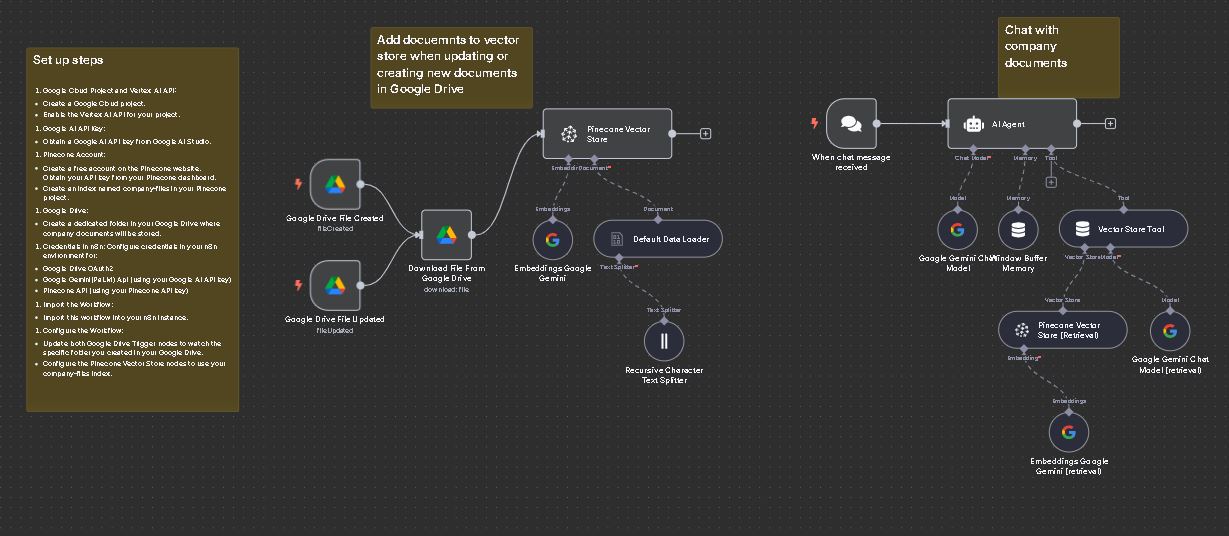
🖼 Workflow Architecture Overview
From the screenshot, here’s how the complete flow works visually:
📁 Google Drive (Trigger & Download) → 📄 Document Loader → 🧠 Vector Store → 🗣 AI Agent → 📡 User Interface (Bot/Webhook) → 🔁 Respond with LLM
This modular design allows scaling and easy debugging.
🛠 Setup Tips
Here are some handy setup tips (from the screenshot):
- Use batch processing in Document Loader for large files.
- Enable chunk size control for better embedding granularity.
- Use n8n’s
Waitnode to manage rate limits or staggered loading. - Store file metadata (name, source) in vector records for searchable context.
- Use the
Execute Commandnode for any custom Python script if needed. - Log errors with
IF+Functionnodes for better debugging.
💡 Use Case Ideas
Here’s how teams are already using this setup:
- Legal teams: Chat with contract documents stored in Drive.
- HR teams: Auto-respond to employee handbook questions.
- Customer support: Ingest product docs and enable instant agent help.
- Sales: Train AI with pitch decks and brochures.
🔐 Security & Access Tips
- Restrict Drive access to read-only folders.
- Enable audit logs for chat inputs/responses.
- Secure LLM API keys with n8n credentials manager.
- Use vector store namespaces per user or team for multi-tenant separation.
📦 Download the Workflow
Need a ready-to-import JSON version of this flow? [Click here to request it] or use the visual editor to replicate the steps above.
🧠 Final Thoughts
Combining n8n, Google Drive, AI models, and vector databases creates a powerful automation framework. Whether you’re automating documentation search or building a smart assistant, this workflow puts the power of AI directly into your operations.
👉 Ready to build your own? Head over to n8n.io and start automating today.
References:
n8n Template:
https://n8n.io/workflows/2753-rag-chatbot-for-company-documents-using-google-drive-and-gemini